Directions to restart console
Note: This guide is for the new iOS app (v.7+). Click here for Android & Legacy iOS versions.
Restarting your console can help with the following issues:
WIFI and Internet not connecting to the console.
Video issues such as the workouts appearing grainy on screen.
Trackers not connecting to the console.
To restart your console, follow these steps:
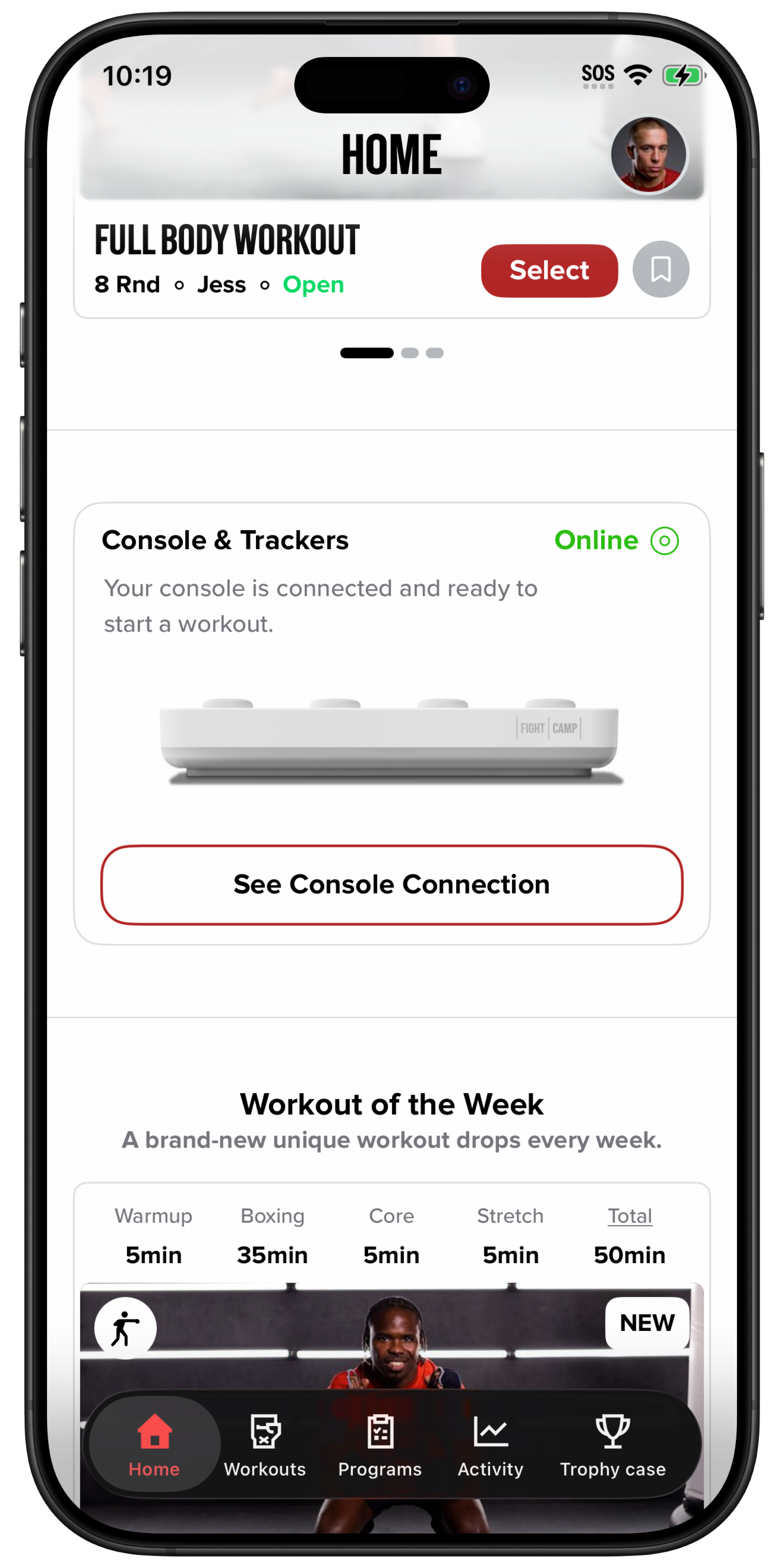
In the FightCamp app, tap “See Console Connection” on the Console card on the home screen.
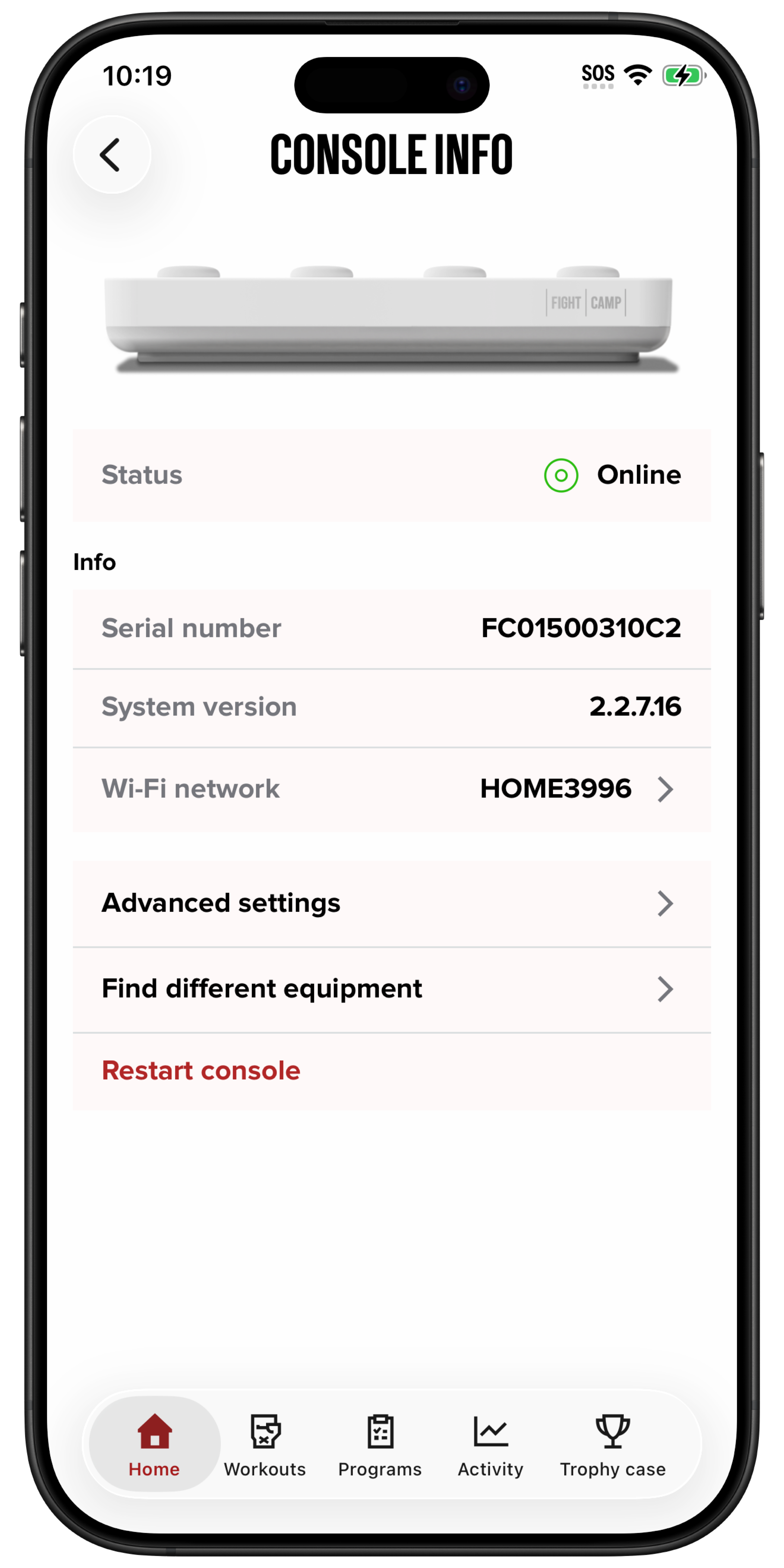
On the Console Info screen, tap “Restart console.”
Alternatively, if your mobile device isn’t connected to the console, unplug the console and plug it back in.
Instructions for Android & Legacy iOS App
Restarting your console can help with the following issues:
WIFI and Internet not connecting to the console.
Video issues such as the workouts appearing grainy on screen.
Trackers not connecting to the console.
To restart your console, follow these steps:
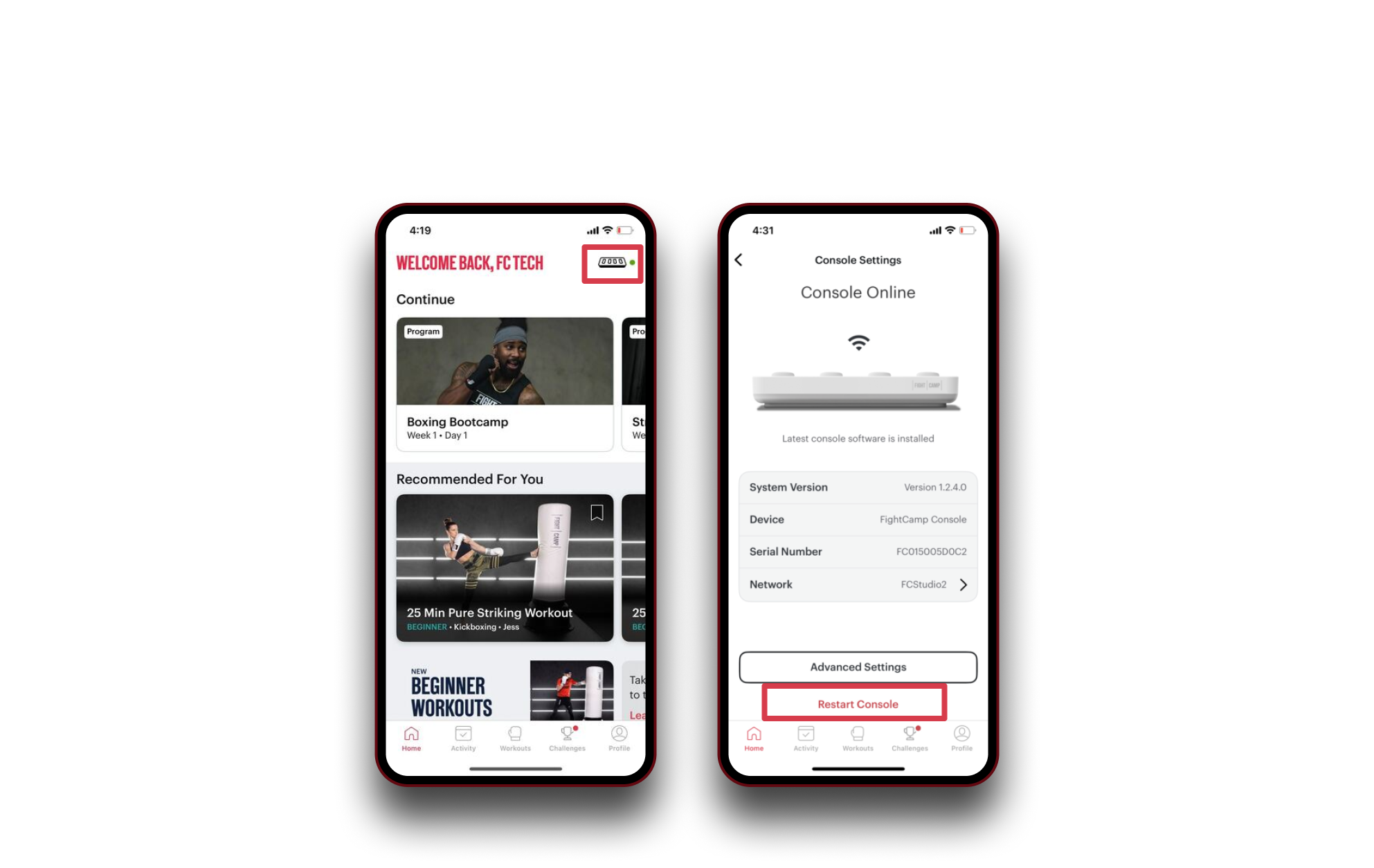
In the FightCamp App, Select the Console Icon in the upper right-hand corner of the home screen.
*Restart Console*.
Or
In the FightCamp App, Select the Settings Cog in the upper right-hand corner of the Profile Screen.
FightCamp Console.
*Restart Console*.
Alternatively, if your mobile device isn't connected to the console, unplug the console to restart it.