Connecting the Trackers
Note: This guide is for the new iOS app (v.7+). Click here for Android & Legacy iOS versions.
Starting A Workout and Connecting the Trackers:
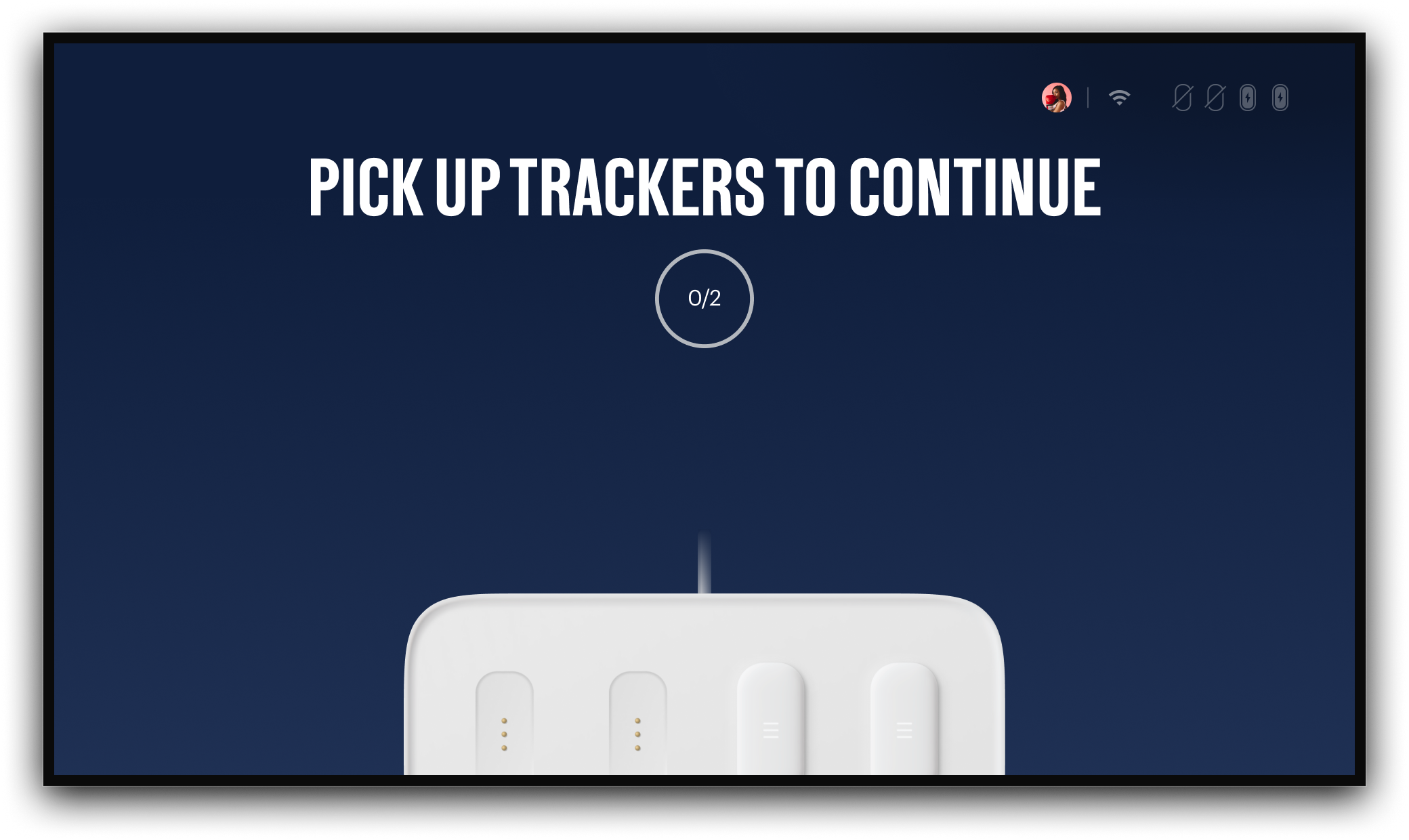
The FightCamp Trackers automatically connect when you pick them up from the Console. After you select your workout, you will be instructed to "Pick Up Trackers" to start the workout. Depending on the workout you are doing you will then be instructed to do a series of strikes, to assign the trackers and start your workout.
Follow the step-by-step instructions below to start using your trackers:
Start the workout.
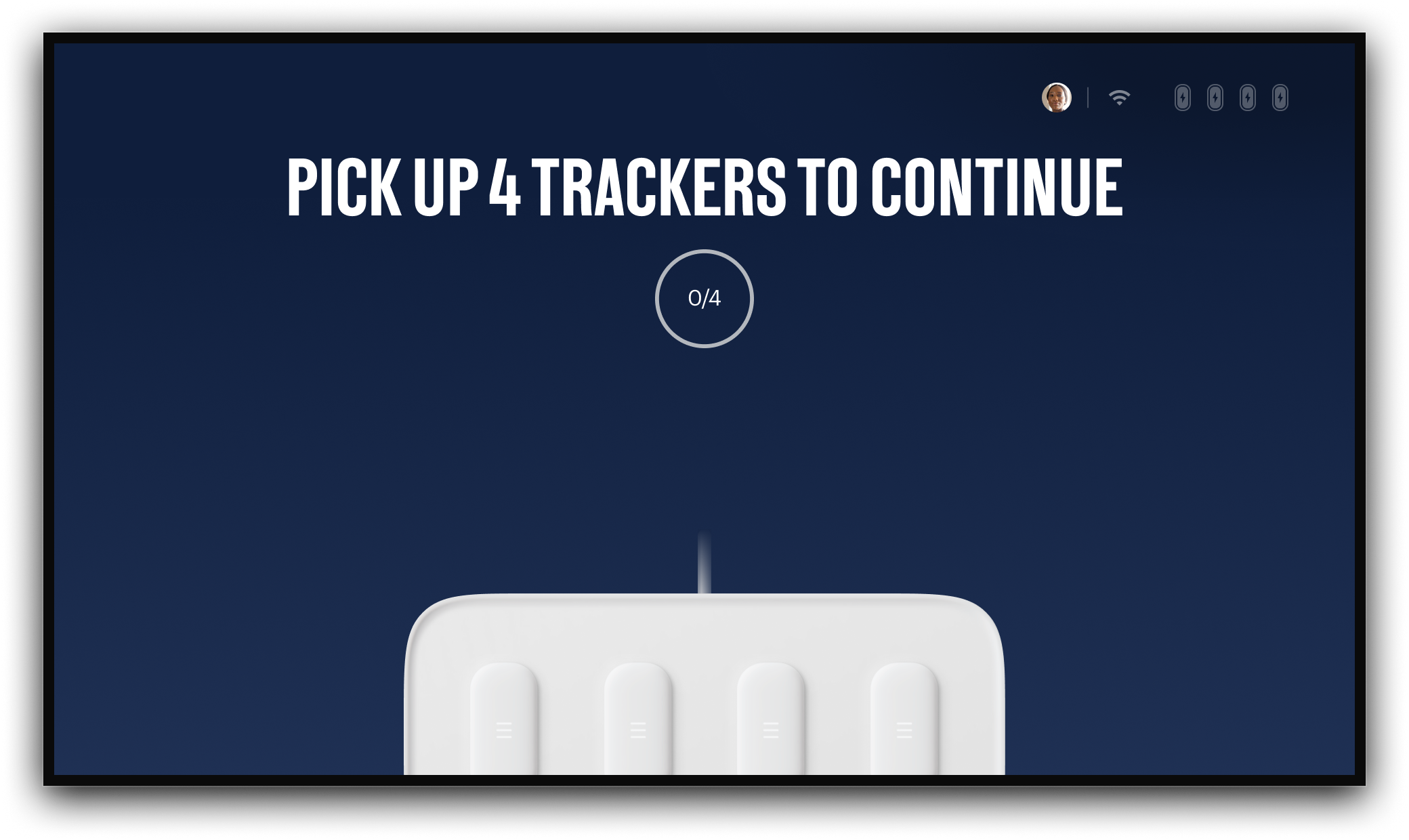
Pick up your trackers when you see the "Pick Up Tracker" screen. This will be shown on your TV if using a TV, or on your mobile device if you are using a mobile device.
Follow the rest of the Pre-Workout Tutorials.
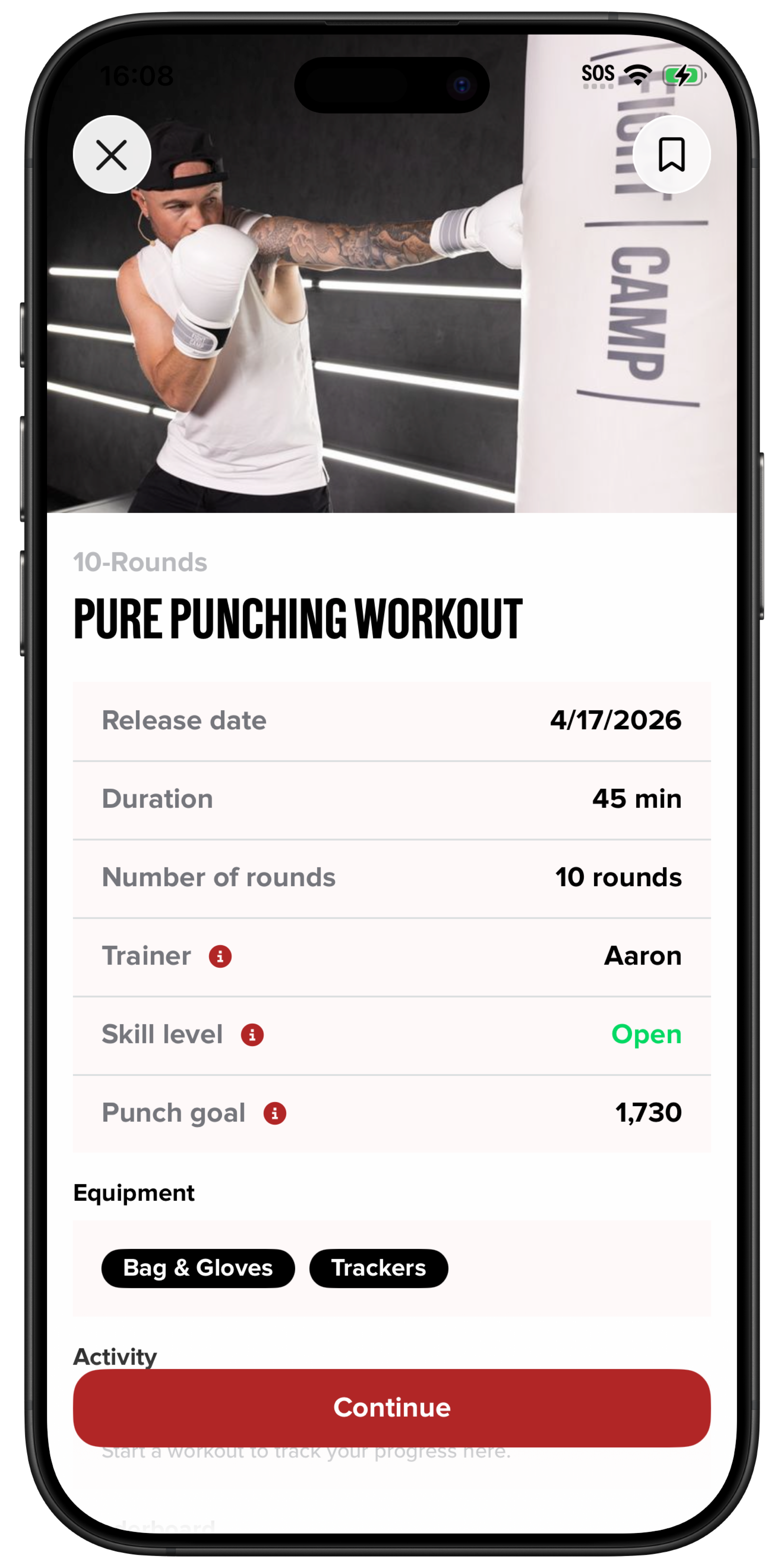
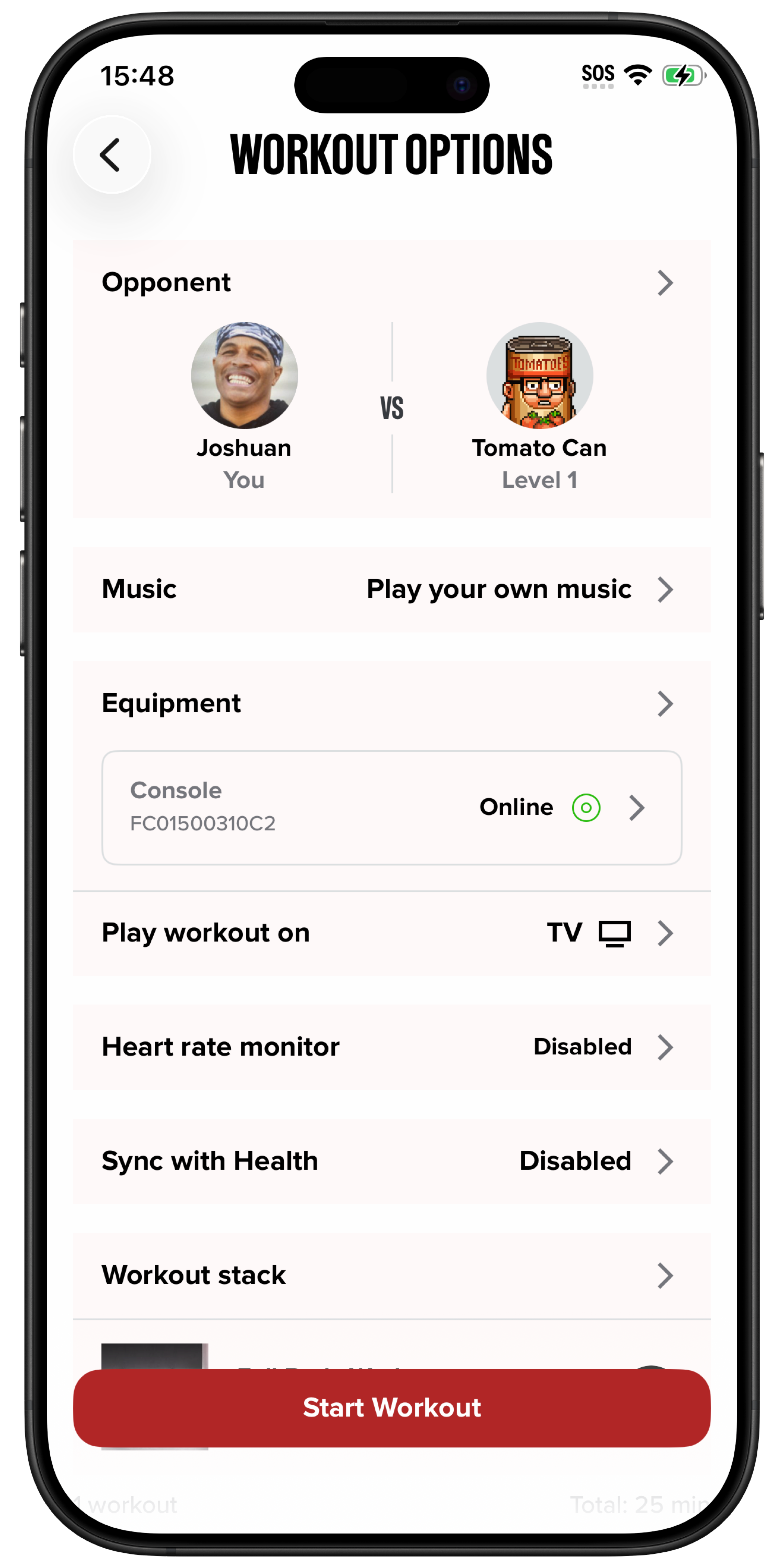
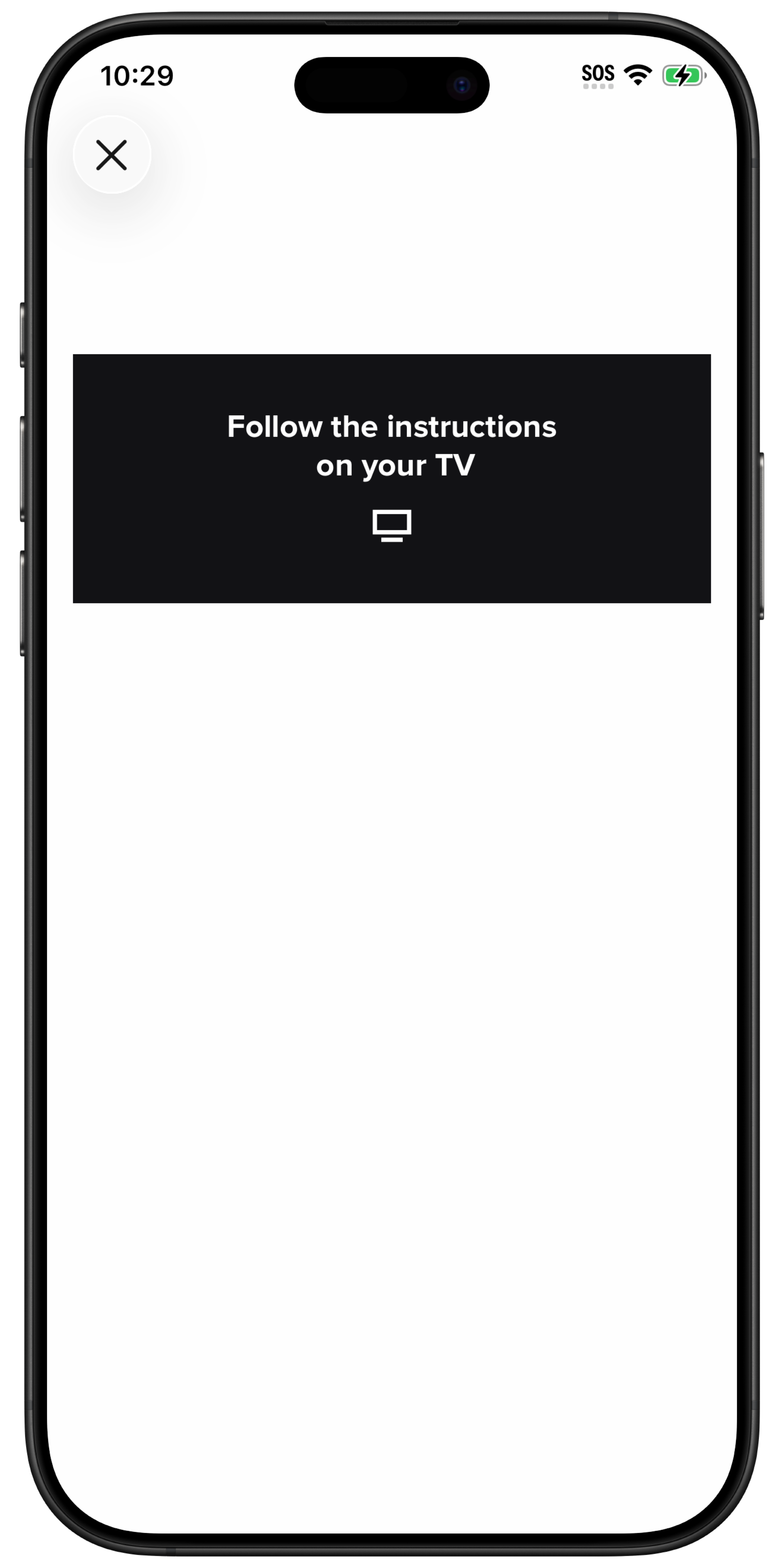
Connecting Trackers in A Boxing Workout.
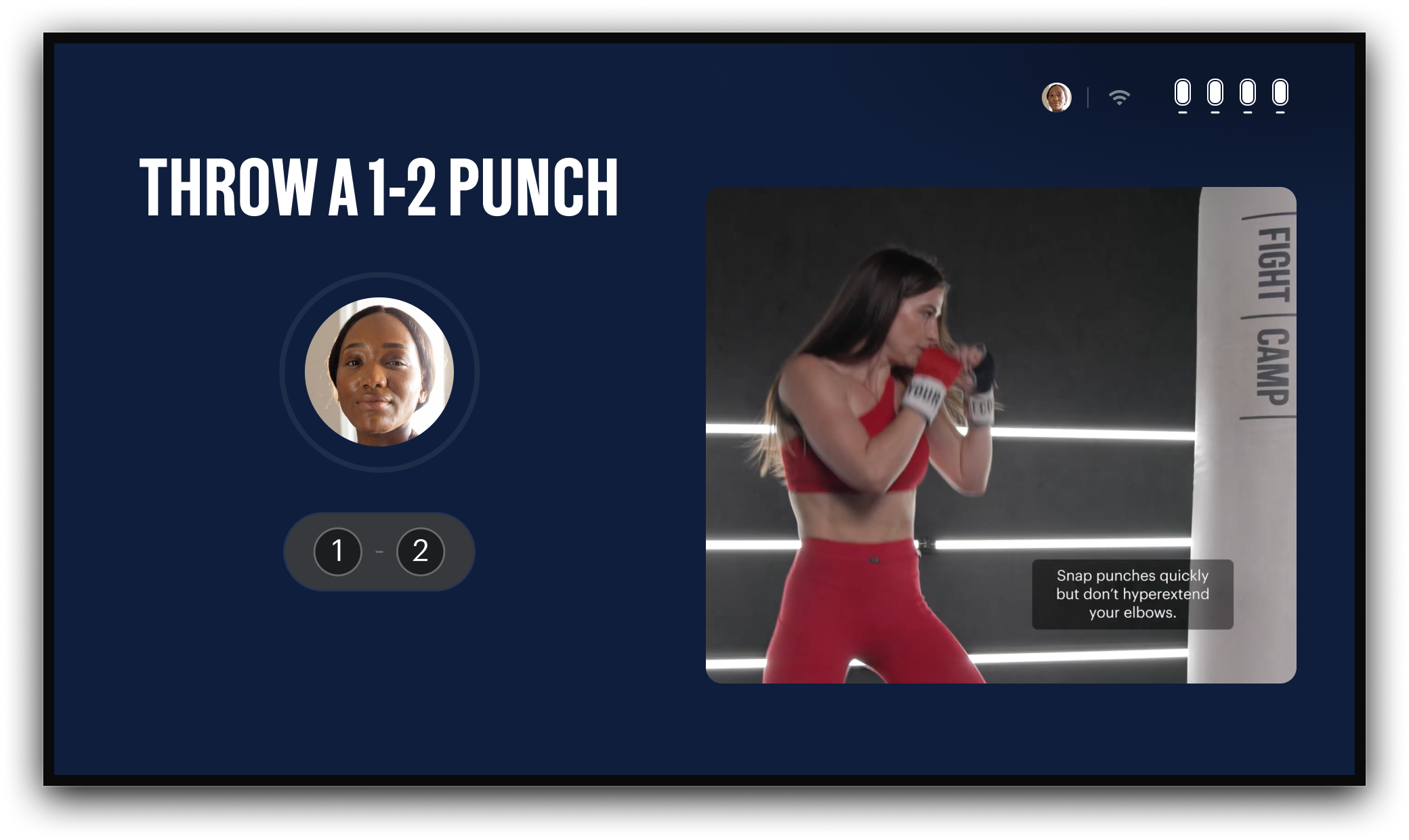
You will be asked to pick up your trackers on the screen where you are watching your workout and throw a 1-2 punch to assign the trackers and begin your workout.
Connecting Trackers in a Partner Boxing Workout
4 trackers are needed for Partner Workouts
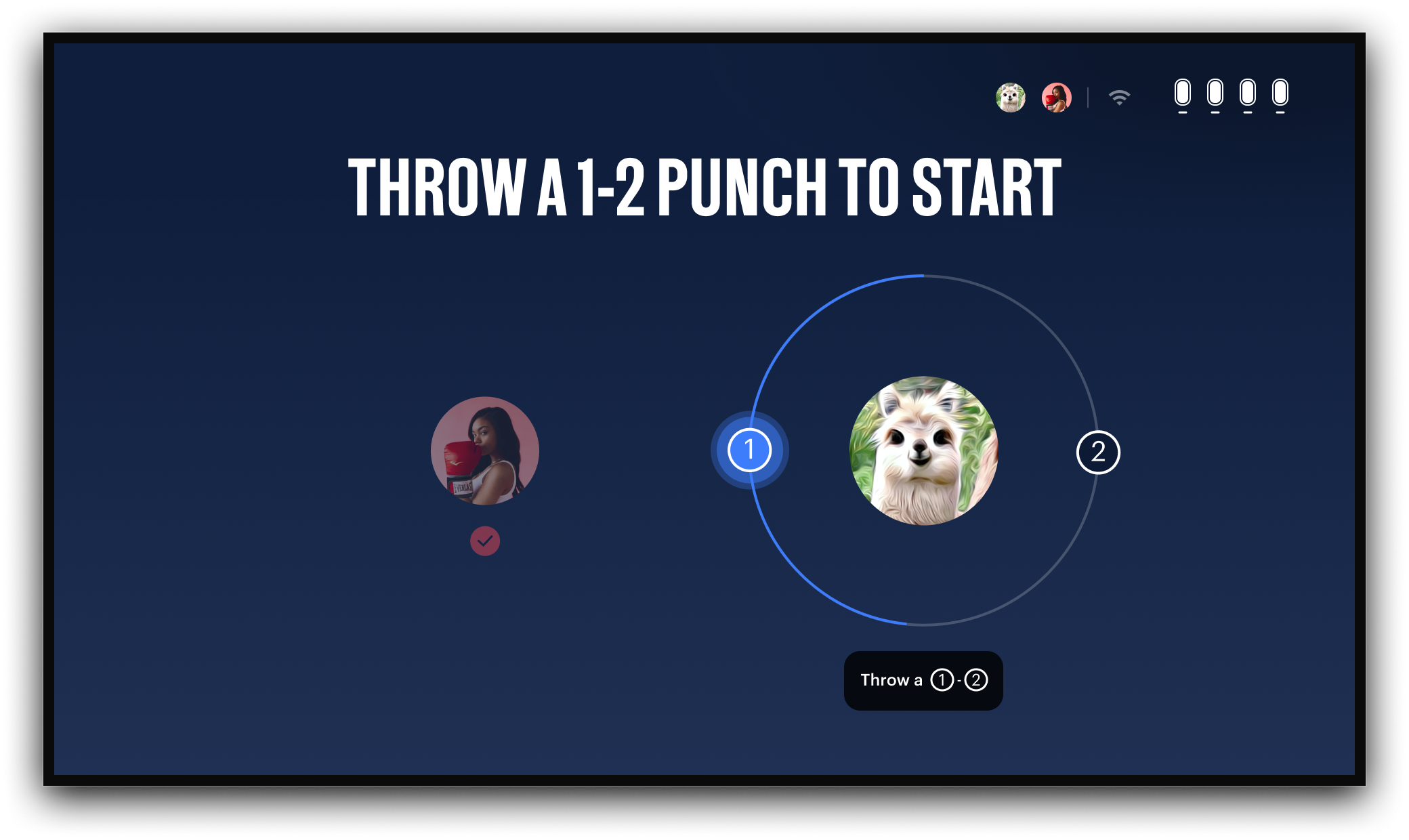
Each partner will pick up a set of trackers and individually be instructed to throw a punch 1-2 to assign the trackers to each user and begin the workout.
For more information on starting a Partner Workout, Please visit our article here.
Connecting Trackers in a Kickboxing Workout
4 Trackers are needed for Kickboxing Workouts.
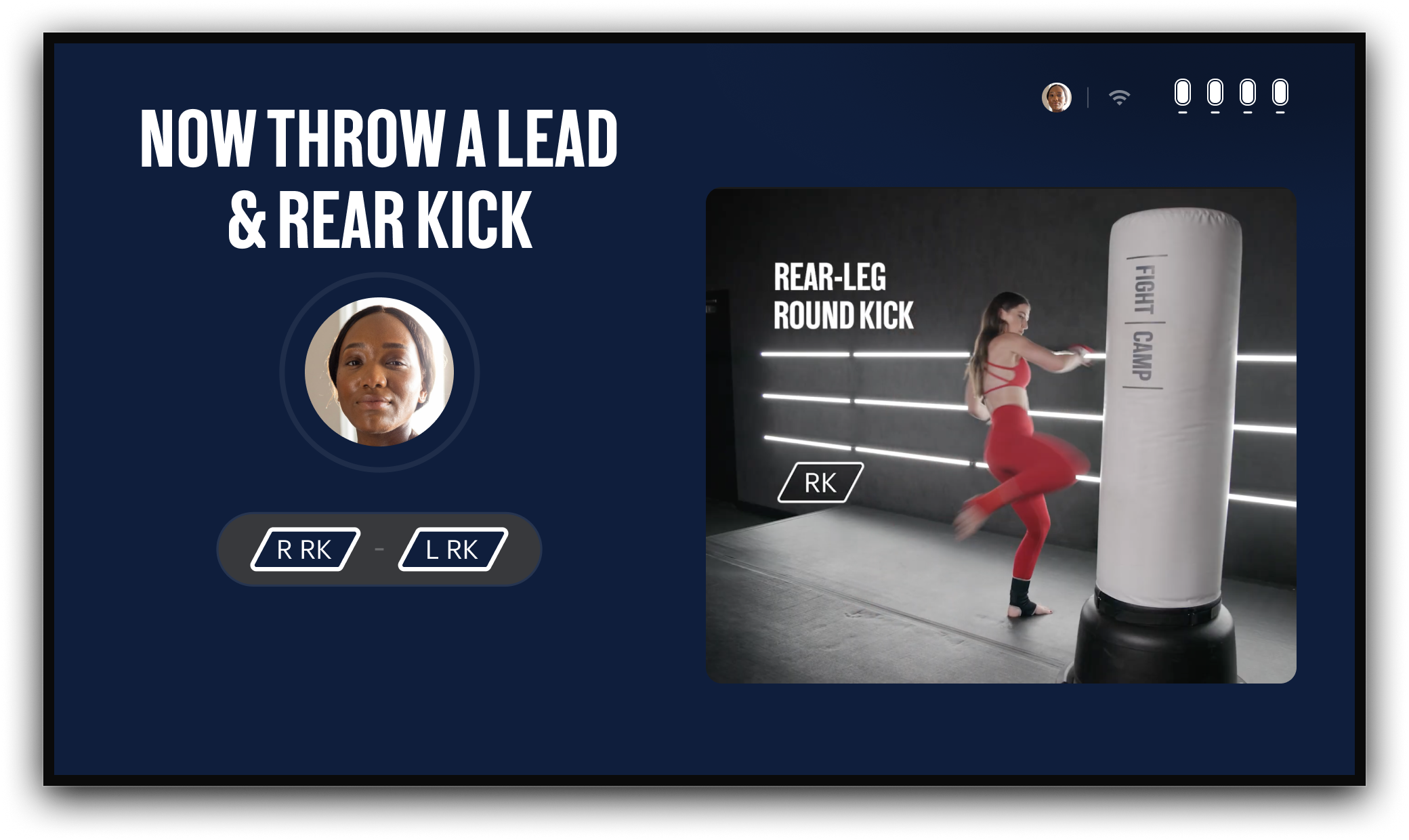
You will be instructed to pick up 4 trackers and complete a punch 1-2 and throw a lead kick and rear kick, to engage both sets of trackers.
All trackers will work for kicks and punches.
Instructions for Android & Legacy iOS App
Starting A Workout and Connecting the Trackers:
The FightCamp Trackers automatically connect when you pick them up from the Console. After you select your workout, you will be instructed to "Pick Up Your Trackers" to start the workout. Depending on the workout you are doing you will then be instructed to do a series of strikes, to assign the trackers and start your workout.
Follow the step-by-step instructions below to start using your trackers:
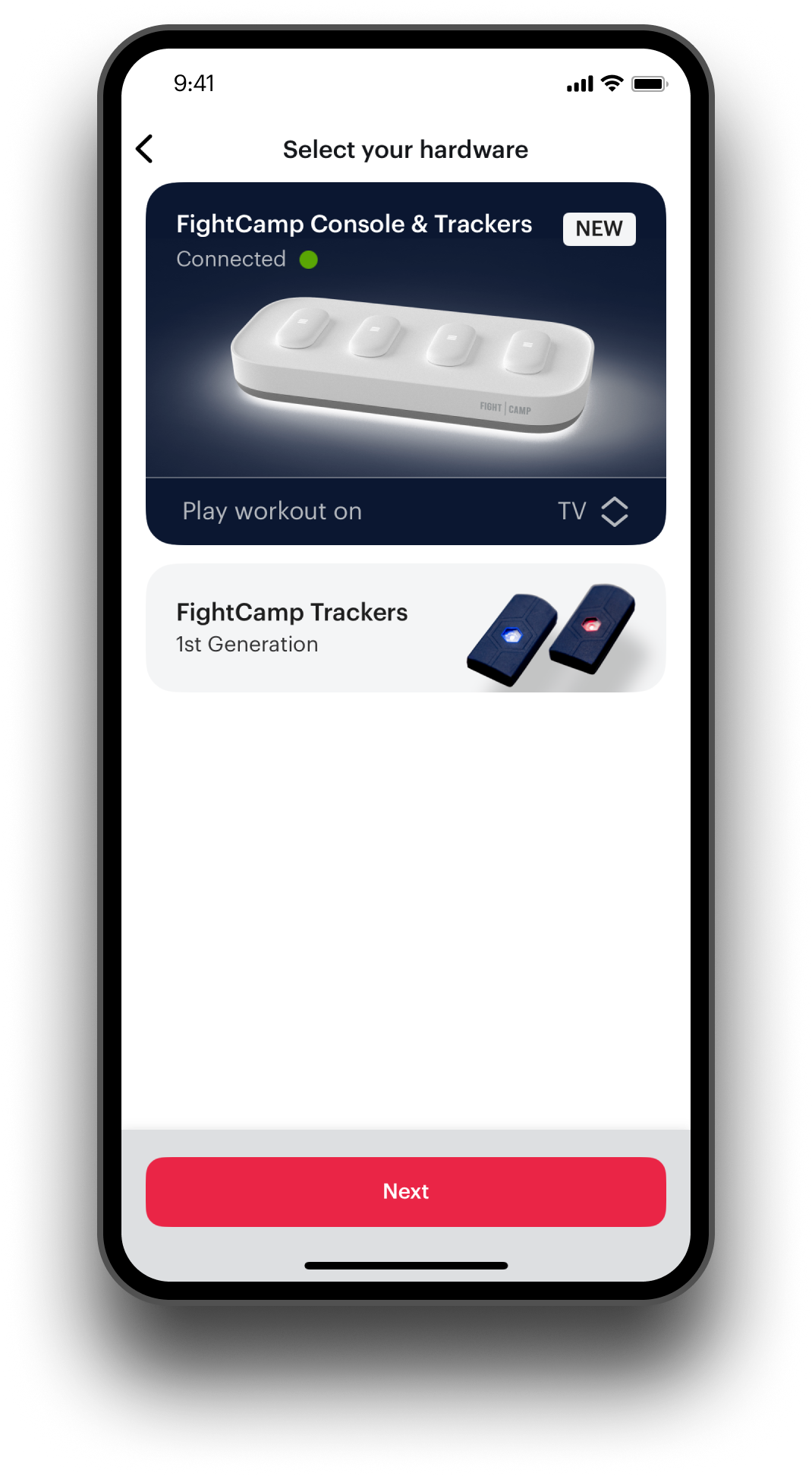
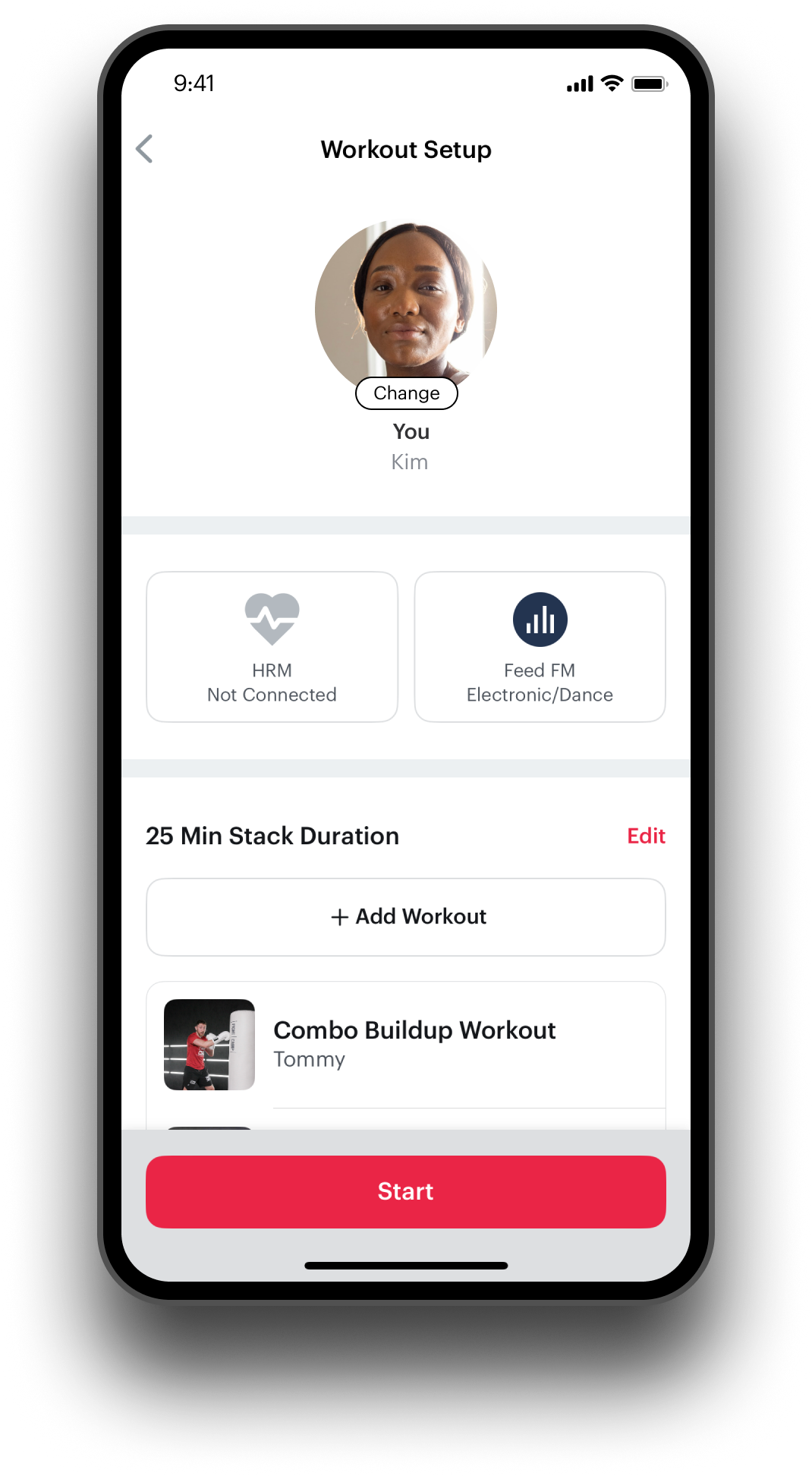
Select the workout you would like to do and select Next.
Choose Console & Trackers on the Select your HardwareScreen.
Select Start.
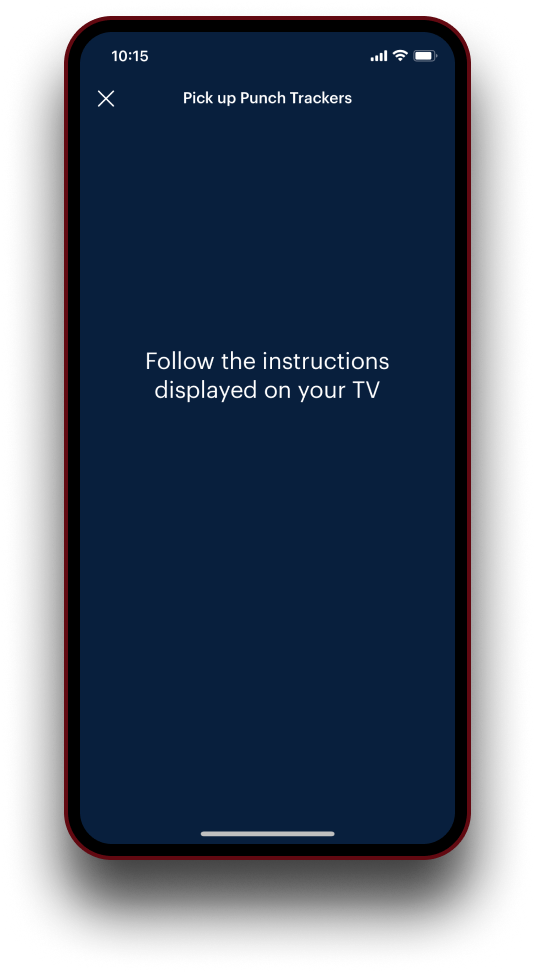
Pick up your trackers when you see the "Pick Up Tracker" screen. This will be shown on your TV if using a TV, or on your mobile device if you are using a mobile device.
Follow the rest of the Pre-Workout Tutorials.
Connecting Trackers in A Boxing Workout.
You will be asked to pick up your trackers on the screen where you are watching your workout and throw a 1-2 punch to assign the trackers and begin your workout.
Connecting Trackers in a Partner Boxing Workout-
4 trackers are needed for Partner Workouts
Each partner will pick up a set of trackers and individually be instructed to throw a punch 1-2 to assign the trackers to each user and begin the workout.
For more information on starting a Partner Workout, Please visit our article here.
Connecting Trackers in a Kickboxing Workout-
4 Trackers are needed for Kickboxing Workouts.
You will be instructed to pick up 4 trackers and complete a punch 1-2 and throw a lead kick and rear kick, to engage both sets of trackers.
All trackers will work for kicks and punches.
Additional Help: