Internet not connecting
Note: This guide is for the new iOS app (v.7+). Click here for Android & Legacy iOS versions.
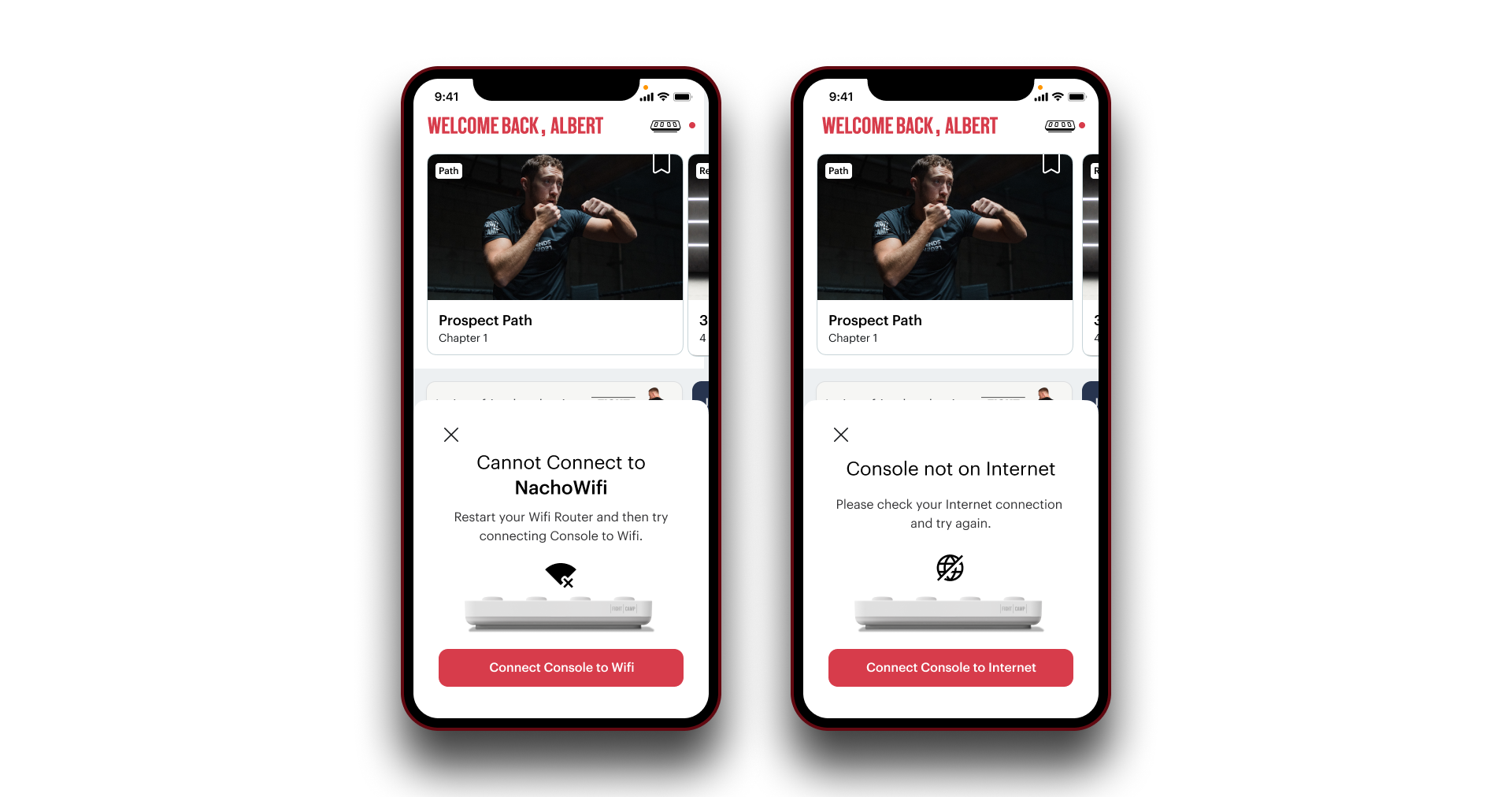
The FightCamp Console must be connected to the internet to stream workouts to a TV and for the trackers to function. If your console cannot connect to the Internet you will see a disclaimer on your mobile device and TV.
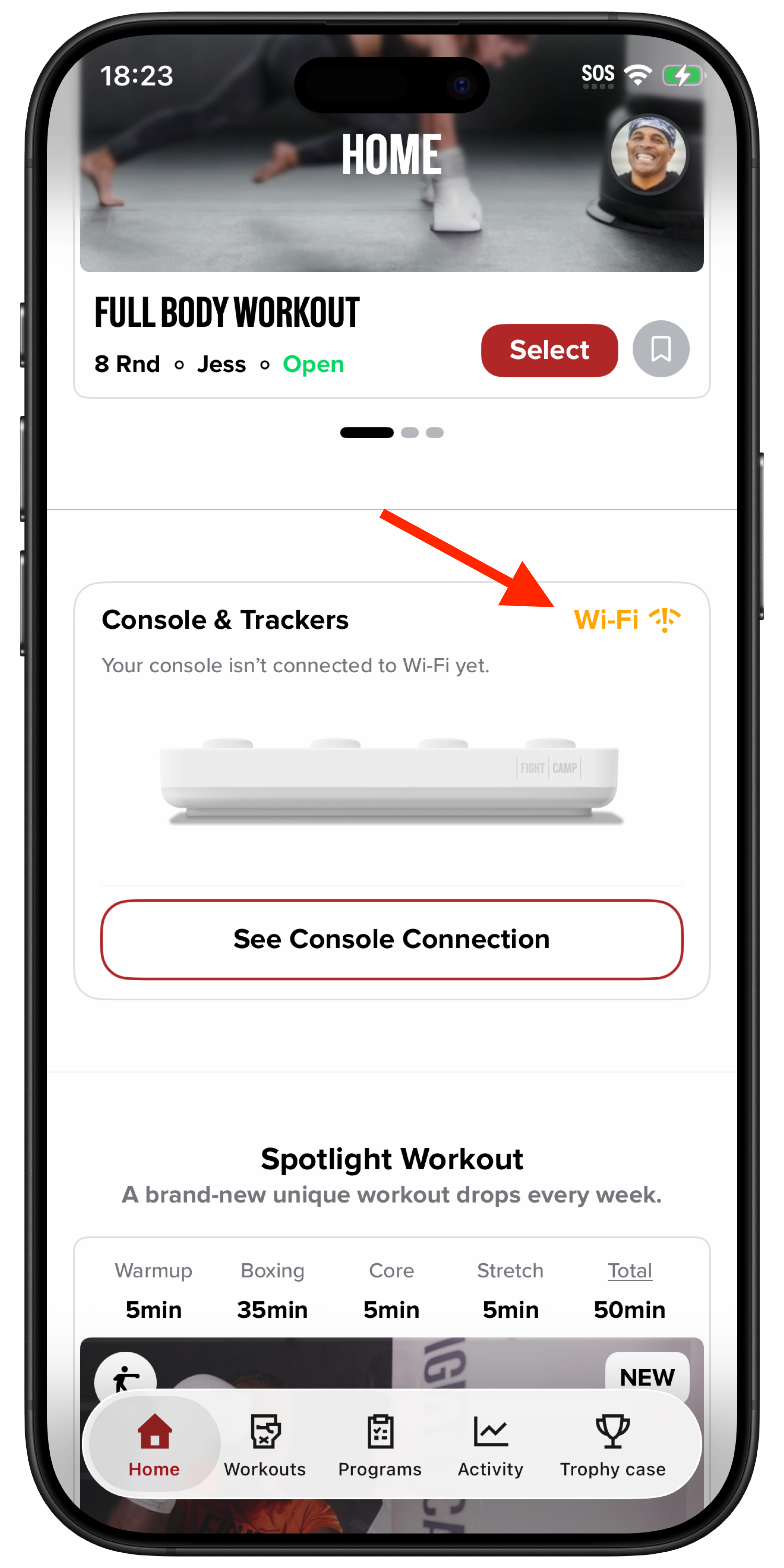
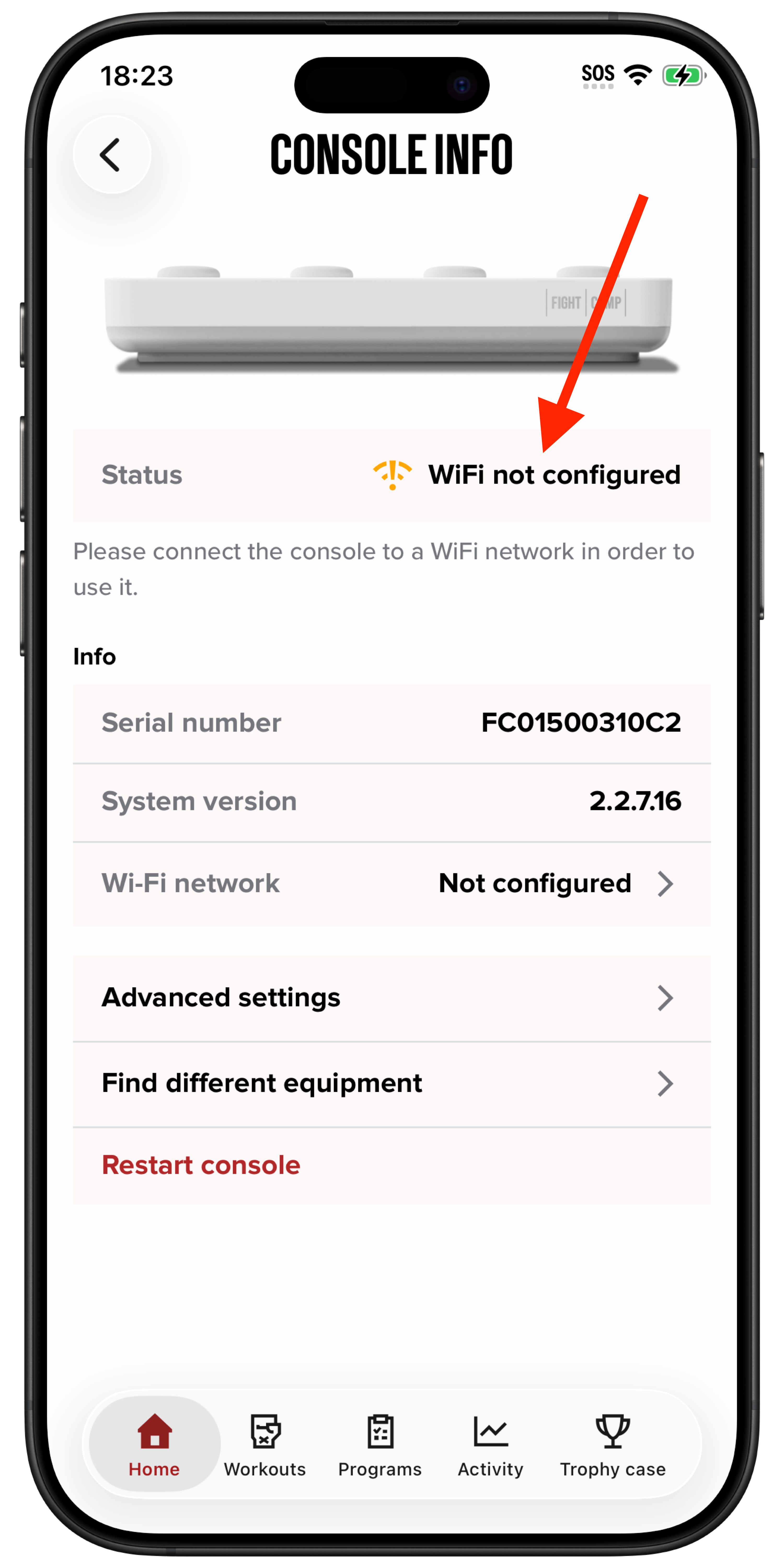
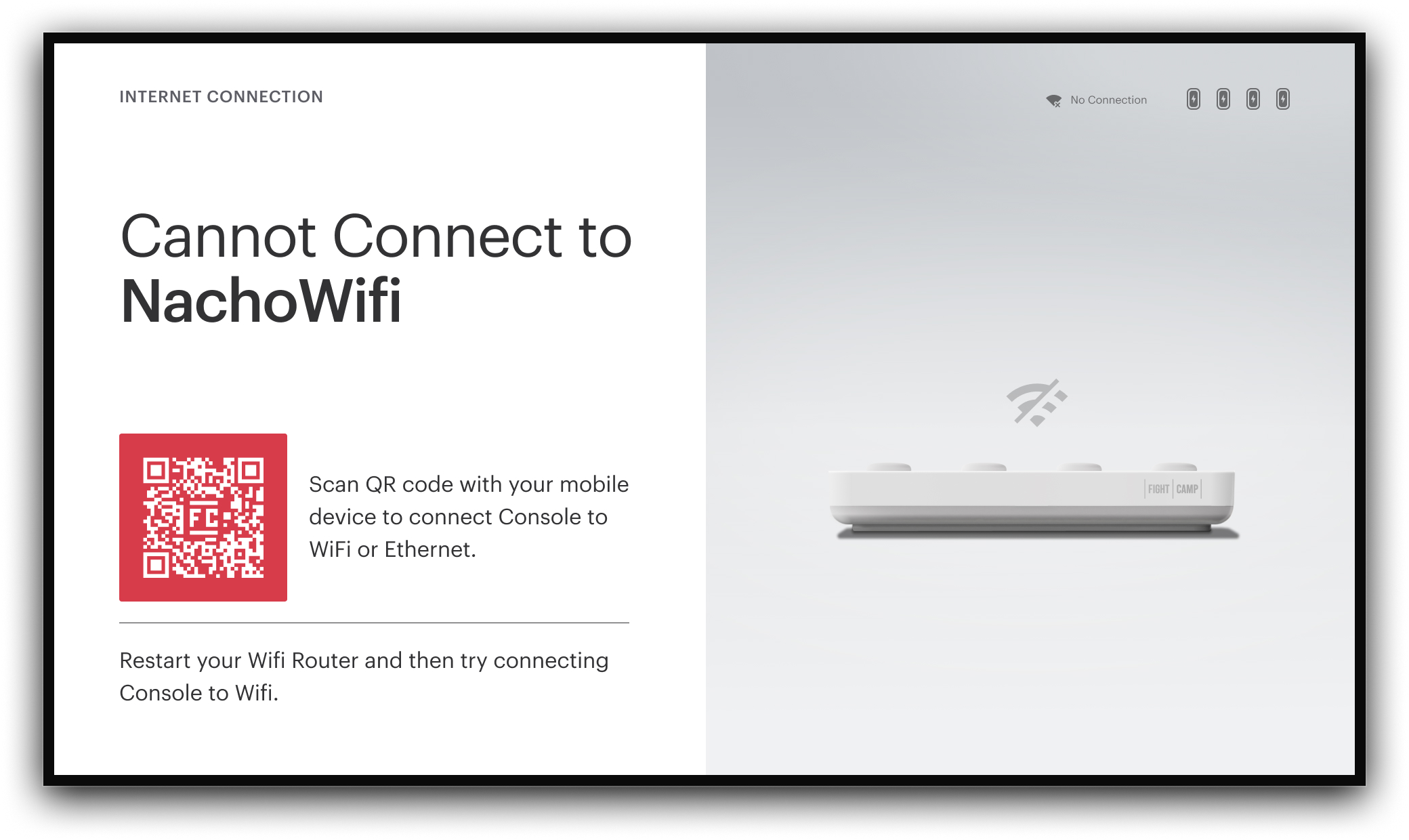
If your console Cannot Connect to WIFI:
Make sure that you are in an area with a strong Internet connection and that your console is within range of your WIFI router.
Select the correct WIFI network, especially if you have changed locations.
If this does not work, restart **your console and connect again.
Restart Console:
In the FightCamp App open the Console **Info screen
Tap Restart Console.
If your console Cannot Connect to the Internet:
This error usually occurs when there is something wrong with your internet provider or router itself. Please check to make sure your internet is connected and try again.
If this does not work please try restarting your router.
Here are other options if you cannot connect the console to the internet.
Try Using Ethernet:
If you do not have a strong WIFI signal, we recommend using an Ethernet Cable to connect the console directly to your Internet modem or router.
Do a FightCamp Workout on Your Mobile Device:
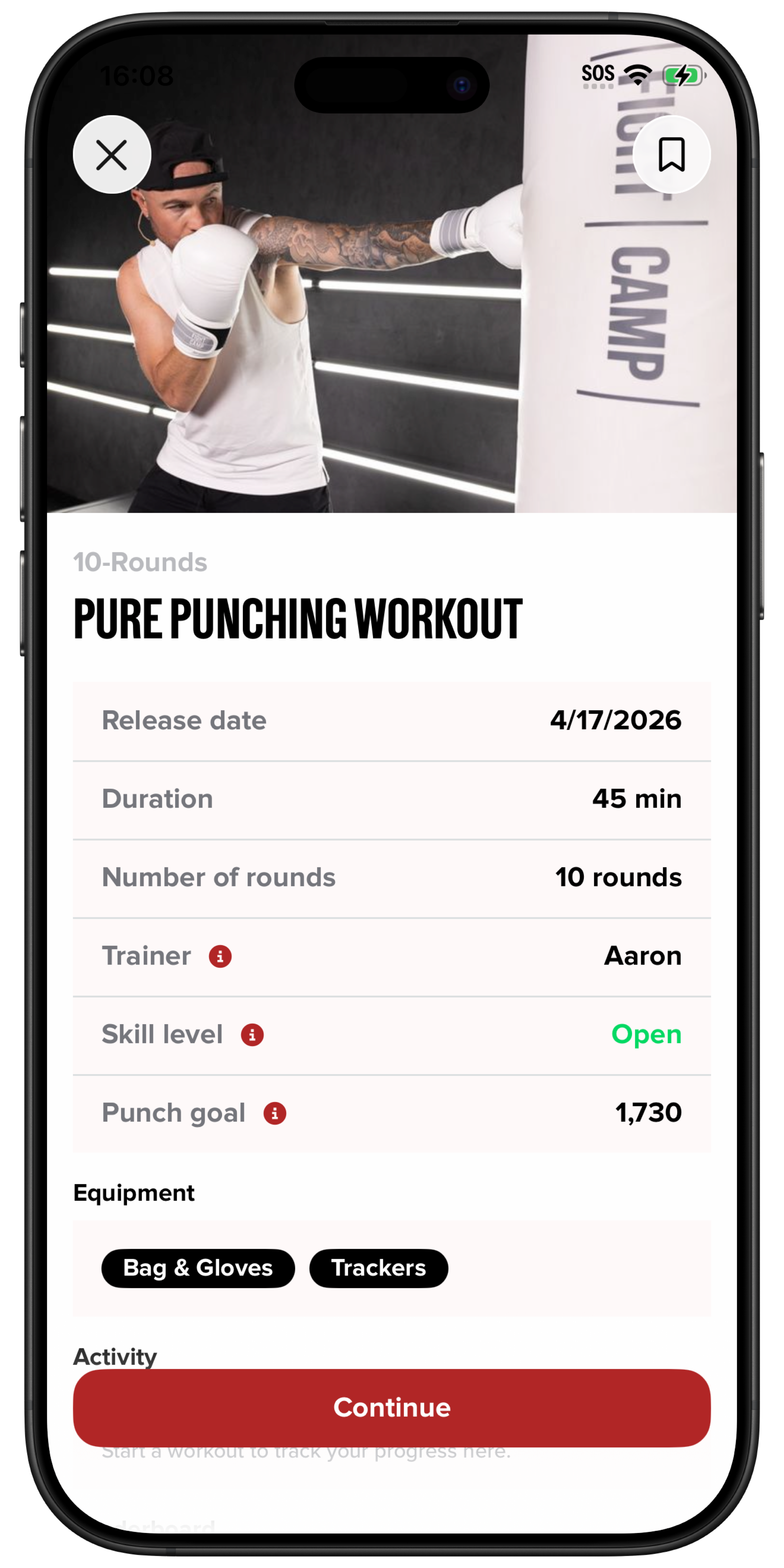
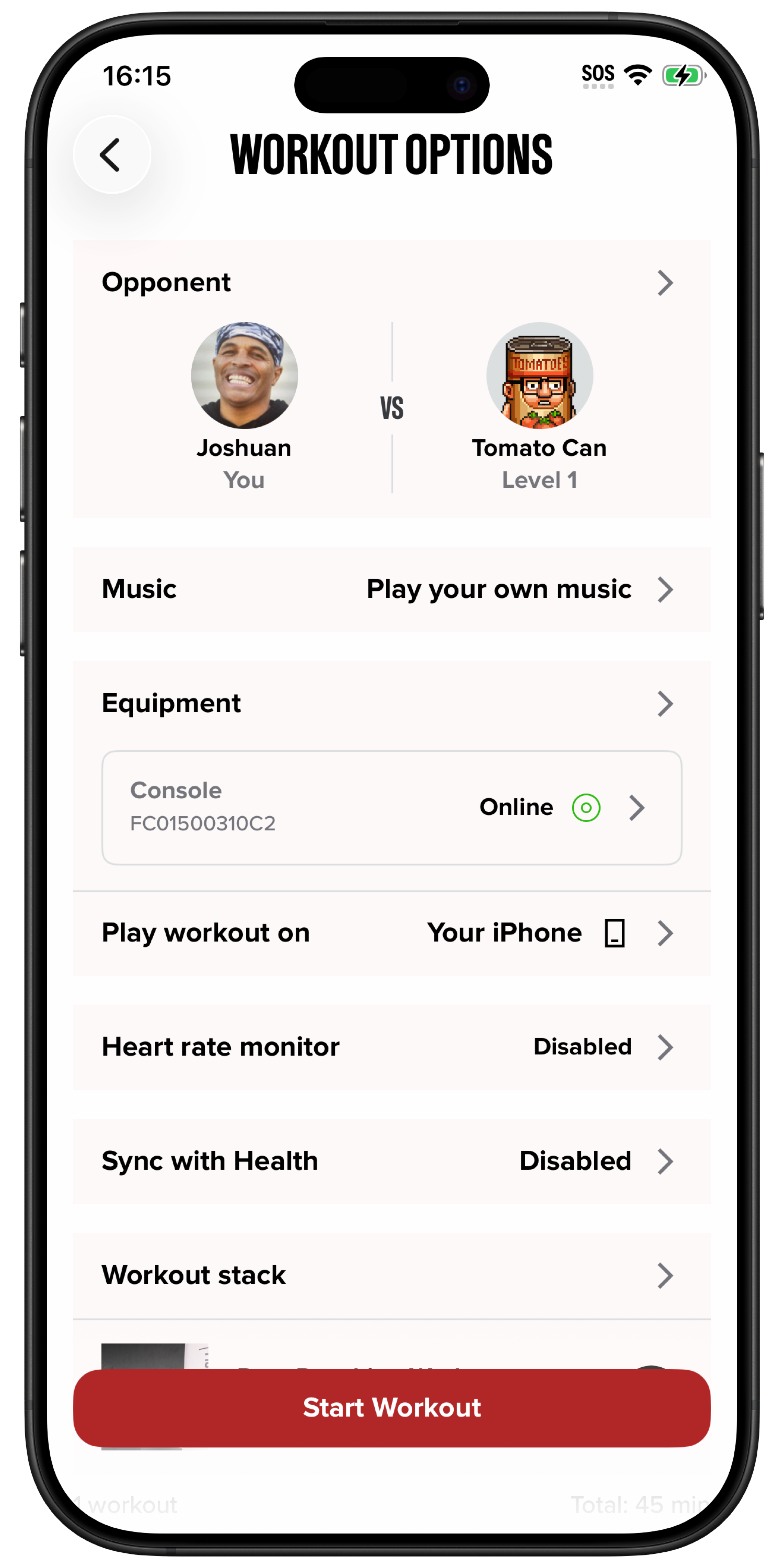
If you are using your mobile device to play workouts the console does not need to be connected to Wifi. You can select to play workouts on your mobile device. For this, change the settings on the Workout Options screen.
Make sure that your console is plugged in.
In the FightCamp App, choose the workout you would like to do and click ”Continue”.
You will be taken to the Workout Options screen.
Make sure the Console is selected in the Equipment section.
In the “Play workout on” section, select your phone / tablet.
Click ”Start Workout” on the Workout Setup Screen.
Instructions for Android & Legacy iOS App
The FightCamp Console must be connected to the internet to stream workouts to a TV and for the trackers to function.
If your console cannot connect to the Internet you will see a disclaimer on your mobile device and TV. Also, the Console button in the upper right-hand corner of the home screen will be red.
If your console Cannot Connect to WIFI:
Make sure that you are in an area with a strong Internet connection and that your console is within range of your WIFI router.
Select thecorrect WIFI network, especially if you have changed locations.
If this does not work, please Restartyour console and connect again.
Restart Console:
In the FightCamp App select the console button in the upper right-hand corner of the home screen.
Select Restart Console.
If your console Cannot Connect to the Internet:
This error usually occurs when there is something wrong with your internet provider or router itself. Please check to make sure your internet is connected and try again.
If this does not work please try restarting your router.
Here are other options if you cannot connect the console to the internet.
Try Using Ethernet:
If you do not have a strong WIFI signal, we recommend using an Ethernet Cable to connect the console directly to your Internet modem or router.
Do a FightCamp Workout on Your Mobile Device:
If you are using your mobile device to play workouts the console does not need to be connected to Wifi. You can select to play workouts on your mobile device on the Select Your Hardware Screen.
Make sure that your console is plugged in.
Open the FightCamp App on your Mobile Device and accept Bluetooth permissions.
Choose the workout you would like to do and click *Next*.
On the Select your hardware screen, choose to play a workout on This Phoneand tap the "Next" button.
Related Articles